


If your computer is locked by BitLocker and you don’t have the recovery key, you’re not alone. This is one of the most frustrating issues Windows users face — being locked out of your own system with no clear way back in.
In this step-by-step guide, you’ll learn how to remove BitLocker from a locked PC or laptop using a safe and effective method, even if you forgot the password.
What is BitLocker and Why Does It Lock Your Computer?
BitLocker is a built-in Windows security feature designed to encrypt your hard drive and protect your data. However, it can lock your system if:
- You forget your recovery key
- You change hardware components
- The system detects a security risk
When this happens, access to your computer is completely blocked.
What You Need Before Starting
- A working computer
- A USB flash drive (pendrive)
- 4DDiG Partition Manager software
- Internet connection
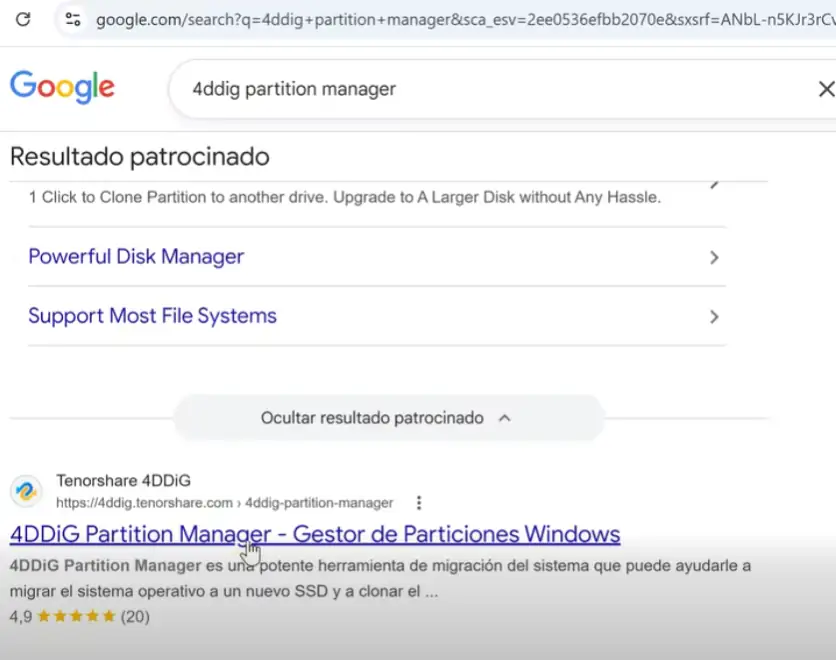
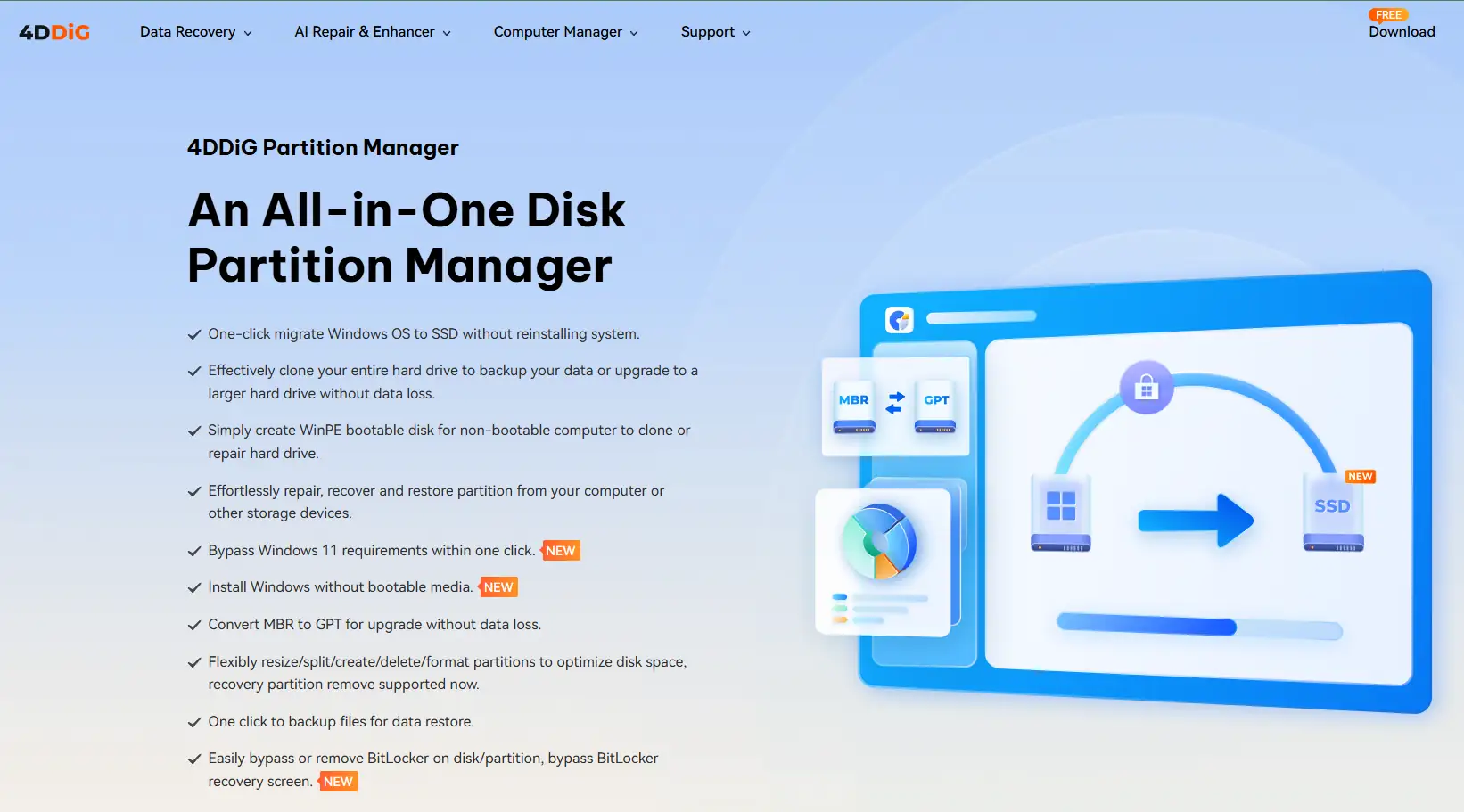
Step 1: Download and Install the Software
On another working computer, download and install the software that will help you remove BitLocker.
Run the installer (.exe) and complete the installation process as usual.
Step 2: Create a Bootable USB (WinPE)
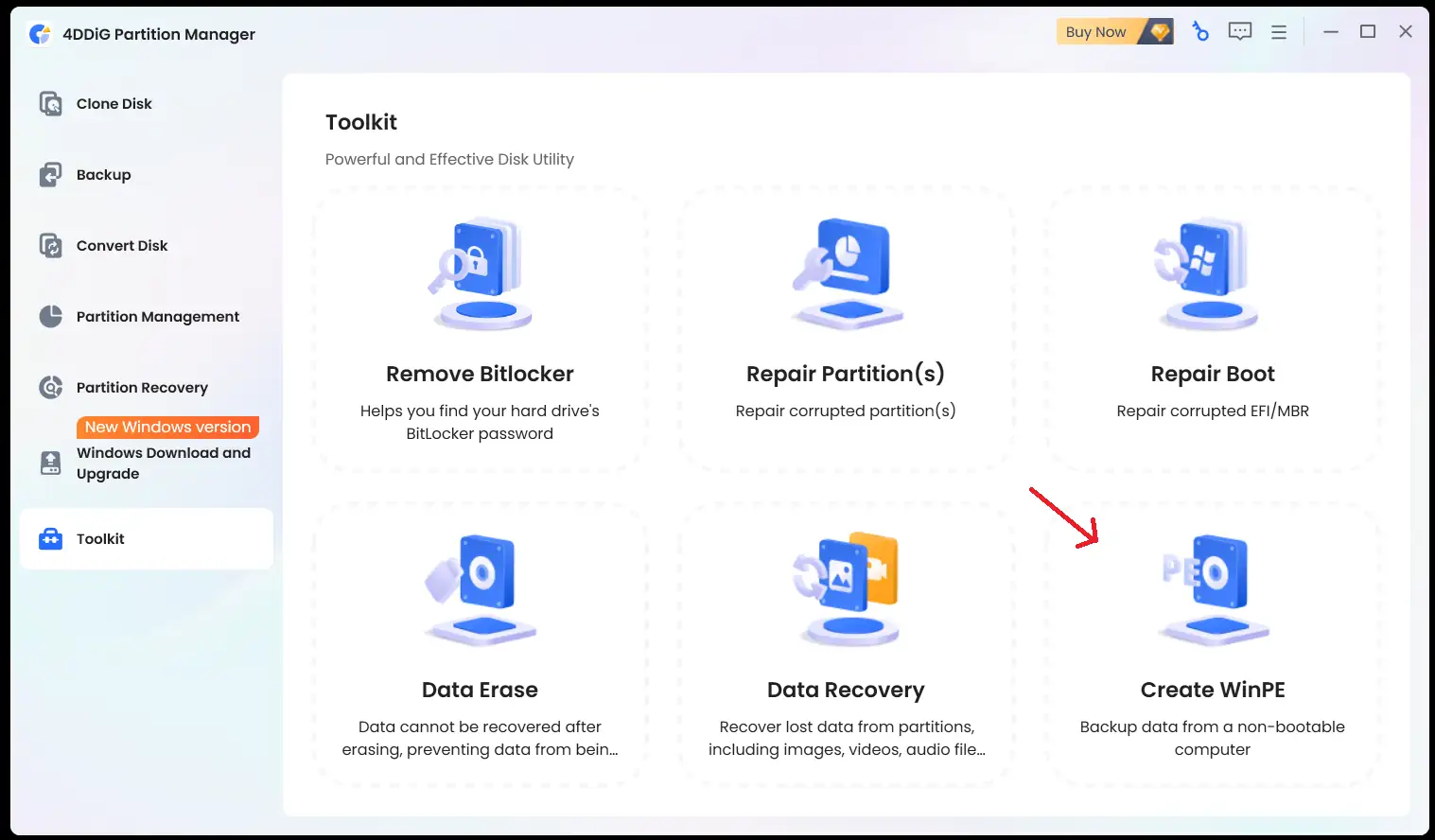
Once inside the program:
- Select the option to create WinPE
- Insert your USB drive
- Select it inside the software
- Click continue
- Wait until the process completes
This will create a bootable recovery USB.
Step 3: Boot the Locked Computer from USB
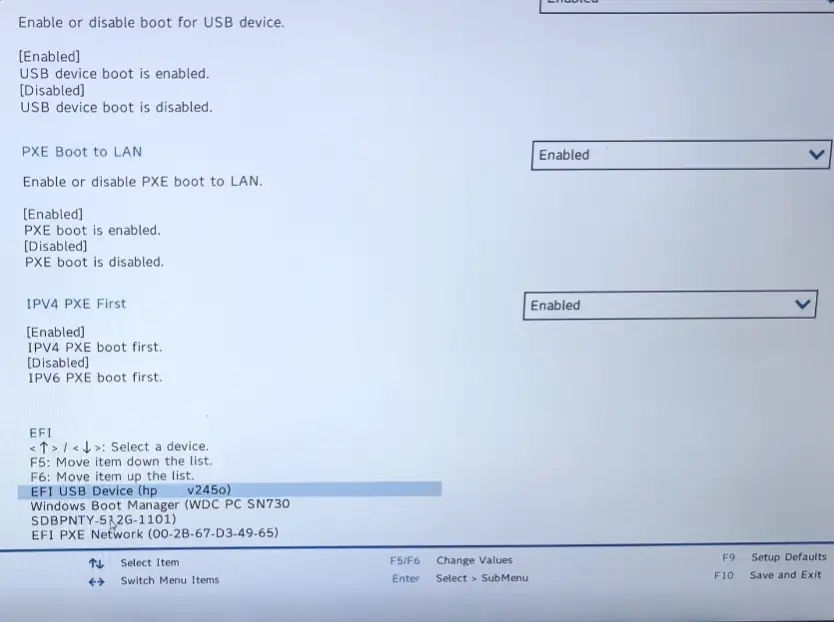
Insert the USB into the locked computer and:
- Turn it on
- Press BIOS key (F2, F9, or F10 depending on the device)
- Go to Boot settings
- Set USB as first boot option
- Save changes and restart
Step 4: Unlock and Remove BitLocker
After booting from the USB:
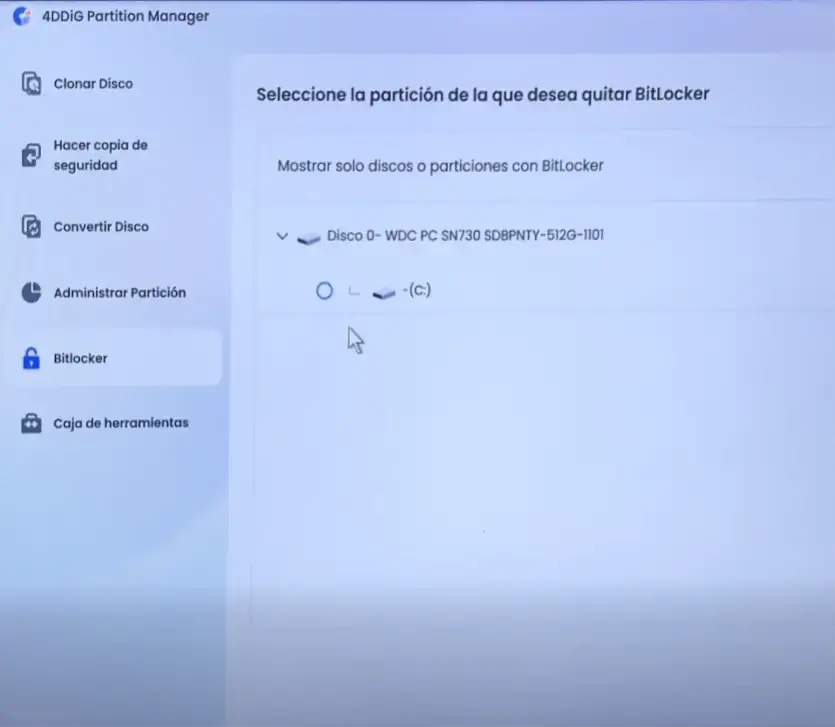
- Open the BitLocker tool inside the software
- Select the locked drive (usually C:)
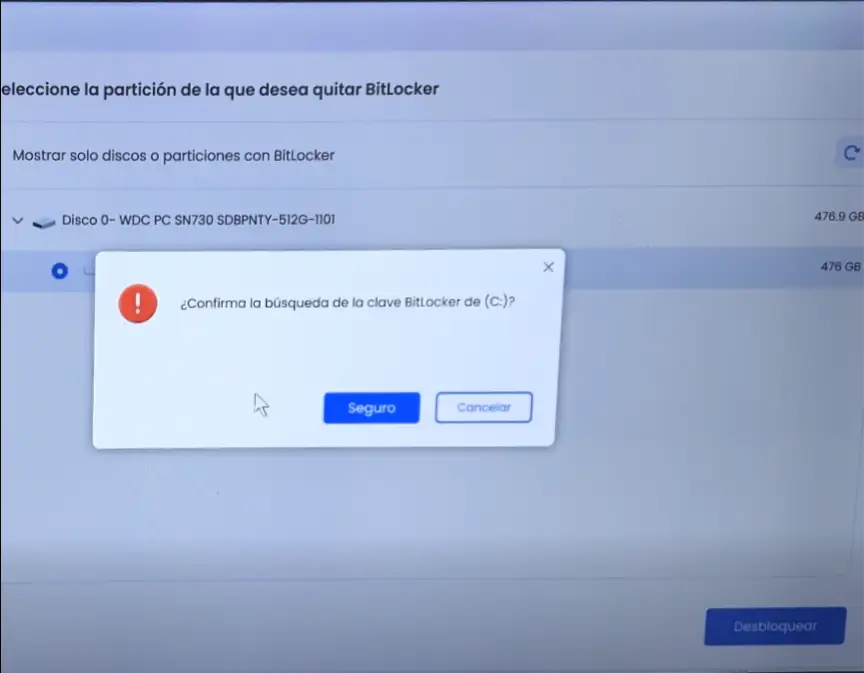
- Click "Unlock"
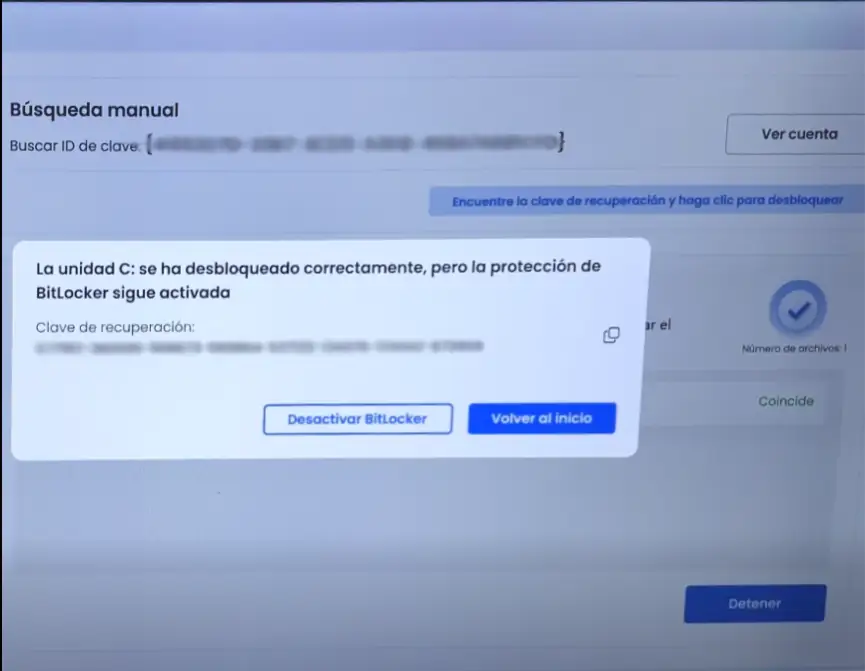
- The software will automatically detect the recovery key
- Click "Disable BitLocker"
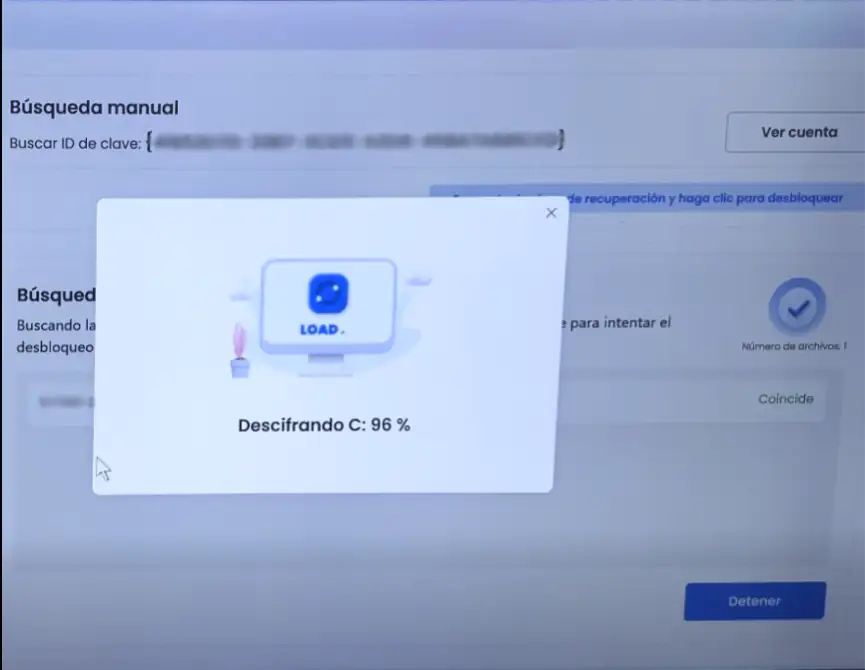
Wait until the decryption process is completed.
Step 5: Restart Your Computer
Once the process is finished:
- Close the software
- Remove the USB drive
- Restart your computer
Your system should now boot normally without the BitLocker lock.
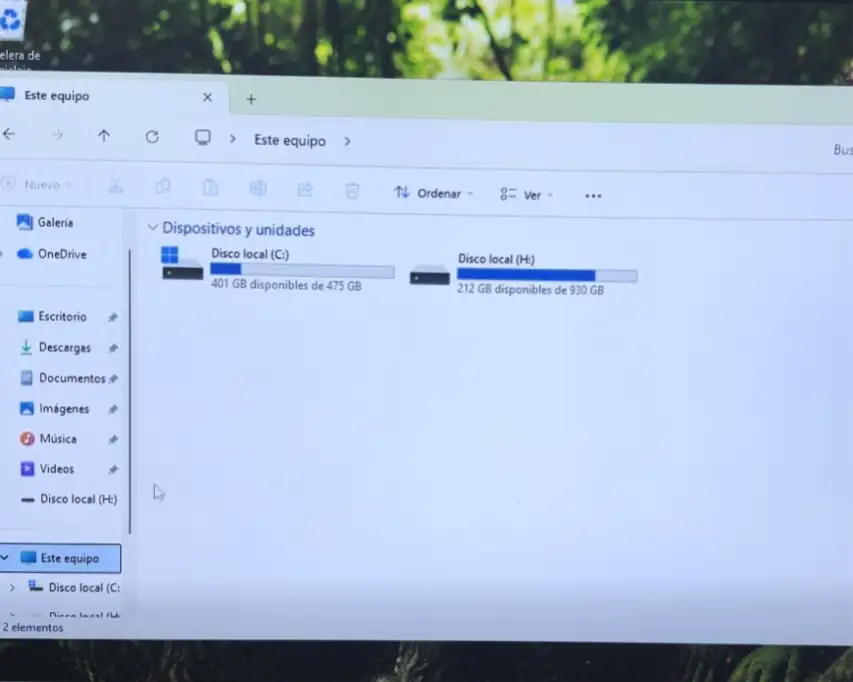
Final Result
- BitLocker successfully removed
- Access to your system restored
- No data loss (in most cases)
Important Tip
Always save your BitLocker recovery key and create backups to avoid future lockouts.
Conclusion
Getting locked out by BitLocker doesn’t mean your data is lost. With the right tools and process, you can regain access to your computer quickly and safely without formatting your system.