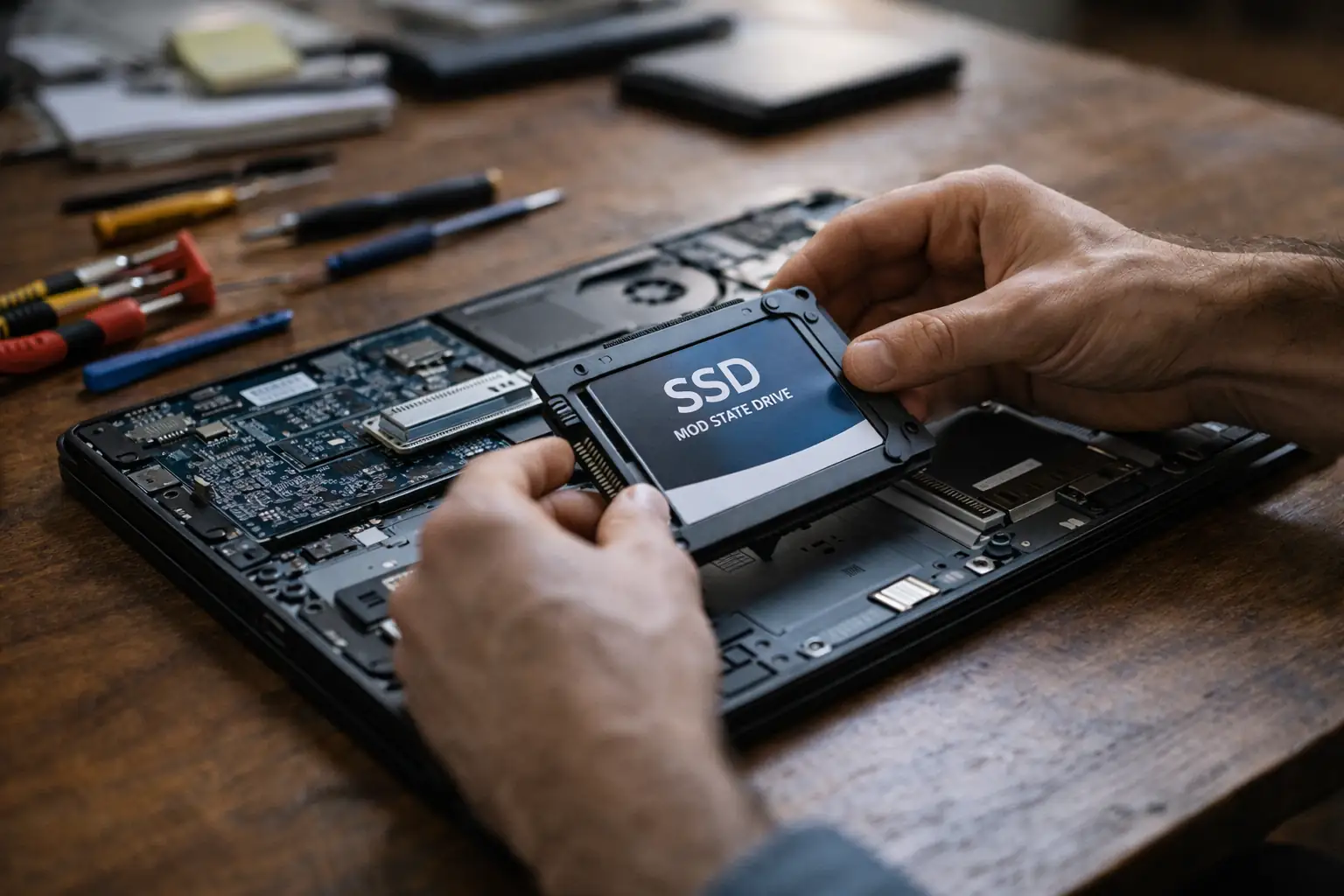
Yes, you can move your whole computer to a new SSD without reinstalling Windows. The process is called cloning: a program copies everything from the old drive (Windows, programs, settings and files) to the new one, and then you swap the drives. For most older laptops and desktops that still use a mechanical hard drive, this is the single upgrade that makes the biggest difference in speed.
Before you start: 5 quick checks
- The old drive must be healthy. If it clicks, disappears from the computer or shows errors while copying, cloning will not work and your files are at risk. Stop and ask for help.
- The new SSD must be big enough to hold the data you actually use (not necessarily the full size of the old drive).
- Know the connector. Laptops use 2.5-inch SATA SSDs or small M.2 drives. Check your model before buying.
- Back up what matters. Copy your important files to an external drive or the cloud first, even if you expect no problems.
- You will need a way to connect both drives at once: a USB-to-SATA adapter or enclosure for a laptop, or a free connector inside a desktop.
The process, step by step
- Connect the SSD to the computer with the adapter.
- Install a cloning tool. Many SSD makers offer free cloning software, and there are reliable free and paid alternatives.
- Choose the old drive as the source and the SSD as the destination. Double-check this step: choosing them the wrong way around erases your data.
- Start the clone and wait. It can take from 30 minutes to several hours depending on how much data you have.
- Turn off the computer and swap the drives. Put the SSD where the old drive was.
- Start the computer. It should boot into the same Windows you had before, only much faster. Keep the old drive untouched for a few days as a safety copy.
Common problems
- The computer will not boot from the SSD. Enter the BIOS and make sure the SSD is the first boot device. Some systems need a specific boot mode (UEFI or Legacy) that matches the original drive.
- Windows asks to activate again. This can happen after a hardware change. Signing in with the same Microsoft account normally fixes it.
- The SSD shows less space than expected. The cloning tool may have copied the old partition sizes. The extra space can be extended afterward in Windows Disk Management.
When it is better to ask a technician
If the old drive already shows errors, if you are not sure which drive is the source, or if the computer holds business files you cannot afford to lose, it is safer to have someone do it. At ITNova Solutions we clone and replace drives, migrate your files and reinstall Windows when needed, for a fixed price agreed before we start. We do not recover data from physically damaged drives.
Want us to check your computer first? Request a free quote or read about our computer repair service.