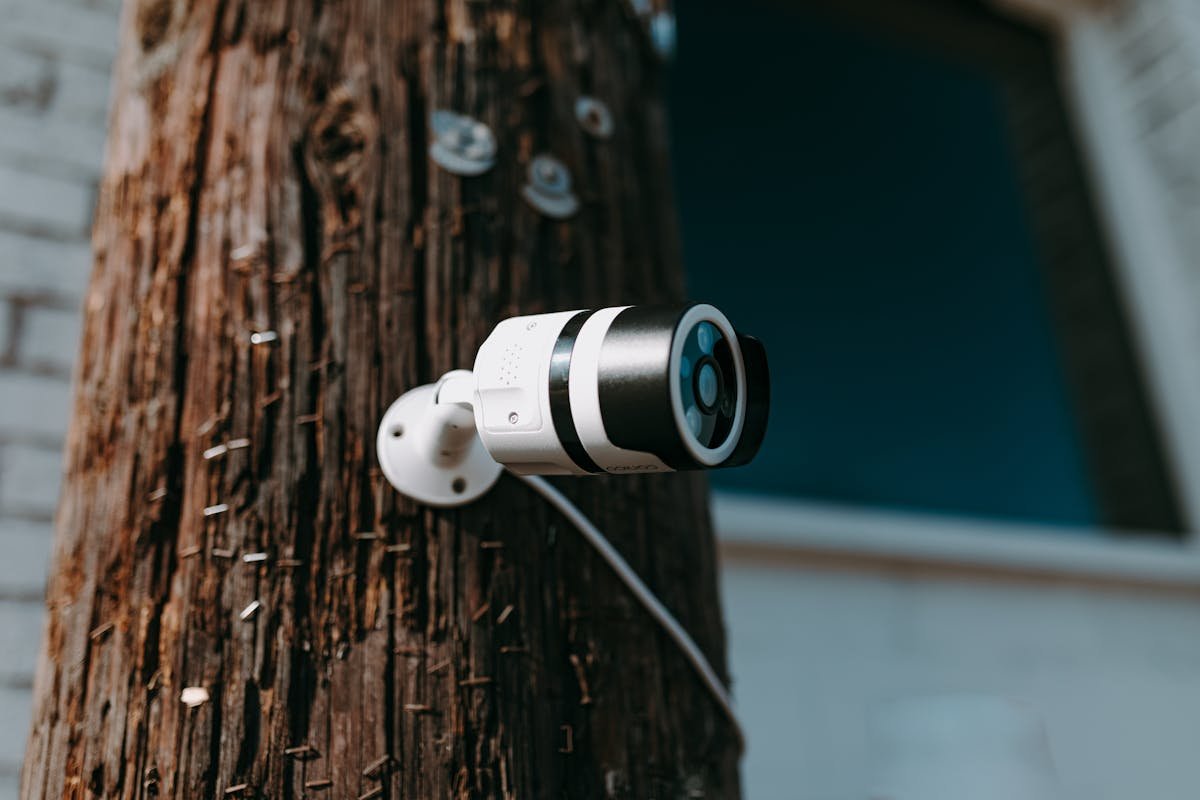
To watch your security cameras on your phone, install the manufacturer's app, create an account, and add your recorder or camera by scanning its QR code while your phone is on the same Wi-Fi. After that it works from anywhere with internet. The part most people skip, and the part that matters most, is doing it safely.
How remote viewing works
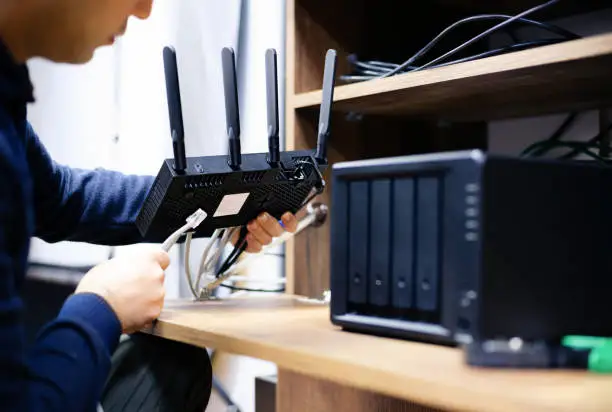
Your cameras or recorder (DVR/NVR) connect to your home network. The app on your phone reaches them in one of two ways. The first is a cloud or P2P connection: the device calls out to the manufacturer's service and your phone connects through it, so nothing needs to be opened on your router. The second is port forwarding: you open a door on the router so your phone can reach the recorder directly. The first is simpler and safer for most homes and small businesses.
Before you start: 5-minute checklist
- The recorder or camera is powered on, connected to the router with a network cable (or to Wi-Fi for Wi-Fi cameras) and has internet.
- You know the admin password. If you never changed the one it came with, change it now.
- Your phone is on the same Wi-Fi for the first setup.
- You have the correct app for your brand (it is usually printed on the box or the recorder's menu shows a QR code).
Step by step
1. Get the QR code or device ID
On the recorder's screen (or in the camera's label or manual) look for a menu named Cloud, P2P, Network or Remote Access. It shows a QR code and a device ID. Make sure the status says Online.
2. Install the app and add the device
Install the brand's official app from the App Store or Google Play, create an account with a password you do not use anywhere else, and choose Add Device. Scan the QR code and enter the device password when asked.
3. Test from outside your network
Turn off Wi-Fi on your phone so it uses mobile data, then open the live view. If it works, remote viewing is ready. If it does not, the usual causes are the recorder not being online, a wrong date or time on the recorder, or a router that blocks the connection.
4. Set up alerts only for what matters
Enable motion alerts for the door or driveway cameras, not for every camera, or you will get hundreds of notifications and start ignoring them. Lower the sensitivity if trees or passing cars trigger alerts.
Mistakes that leave cameras exposed
- Default passwords. Admin/admin or no password is the first thing attackers try. Use a long unique password on every device.
- Opening ports "just to make it work." If you forward ports to a recorder that is not updated, anyone on the internet can try to reach it. Use the cloud connection or a VPN instead.
- Never updating the firmware. Manufacturers fix security flaws in updates. Check for one in the recorder's menu or the app.
- Sharing one login with the whole family or staff. Create separate users with view-only permissions so you can remove one without changing everything.
- Cameras on the same network as your computers. A separate network for cameras limits the damage if one is compromised.
When the app will not connect
Work through this order: confirm the recorder shows Online, restart the recorder and router, check the date and time on the recorder, update the app, and try removing and adding the device again. If you use a mobile data connection that blocks some traffic, test on a different network.
When it is time to call a technician
Call someone if you have several cameras or a recorder you cannot log in to, if the cameras keep going offline, if you want to view from a computer or TV as well, or if you want remote access through a VPN instead of the cloud. At ITNova Solutions we configure security camera systems that are already installed: remote viewing, user accounts, alerts, recording settings and the network behind them. We do not install the cameras physically. We work remotely or on-site within 10 miles of Hialeah Gardens, with a fixed price per service and a 7-day guarantee on the work performed.
Cameras installed but you cannot see them on your phone?
Tell us the brand and what the app says. We will set up remote viewing safely, usually in one session.
See our security camera setup service